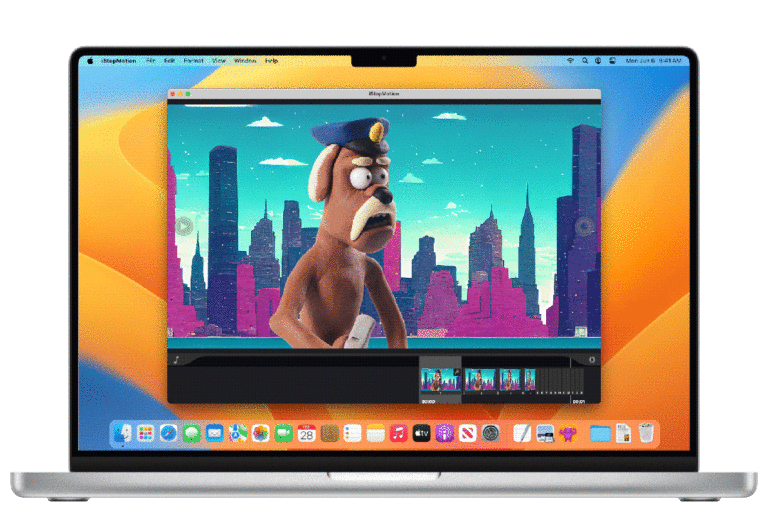
iStopMotion is a playful animation software to create stop motion animations, claymations, or cartoons on Macs, iPads, and iPhones. Especially designed for kids to be creative with computers and help make their first playful steps into computer animation.
With a child-friendly interface, clear instructions, and intuitive features, iStopMotion empowers young students to bring their imaginations to life effortlessly.
Visual cues and step-by-step guidance make it simple for even the youngest animators to capture and arrange frames, while our intuitive timeline helps them understand the concept of sequencing and storytelling.
With iStopMotion, you can easily create your own stop motion animation movie.
Made for Mac, iPhone and iPad
Child-Friendly Interface for Stop Motions
iStopMotion provides an intuitive and user-friendly interface that makes it accessible to beginners.
The software’s straightforward layout and controls allow users to quickly navigate and start creating animations with ease.
Use an iPhone as a wireless camera
Enhance your animation experience with iStopMotion’s seamless integration with a wide range of cameras and devices. Whether you prefer using your iPhone, iPad, USB webcam, iStopMotion empowers you to select the equipment that best suits your creative vision.
iStopMotion introduces its exclusive Remote Camera App for seamless wireless control of iPhones and iPads during your stop motion animation projects.
Featured by
Safety and Privacy in iStopMotion
We prioritize the safety and privacy of our users, especially when it comes to the young animators who use our software.
We are committed to creating a secure environment where students can explore their creativity with peace of mind. Our software strictly adheres to data privacy regulations, ensuring that any personal information remains confidential and protected.
We do not collect or share any student data. We believe in providing a trustworthy platform for students and educators alike, empowering them to create and collaborate in a secure and privacy-conscious manner. Read your Privacy Policy App for details
Customer Reviews about iStopMotion
5/5
I started with making stop motions years ago and I still love iStopMotion. It covers what I need and is easy to use. Love it!
@Lovelynn
5, December 2022
5/5
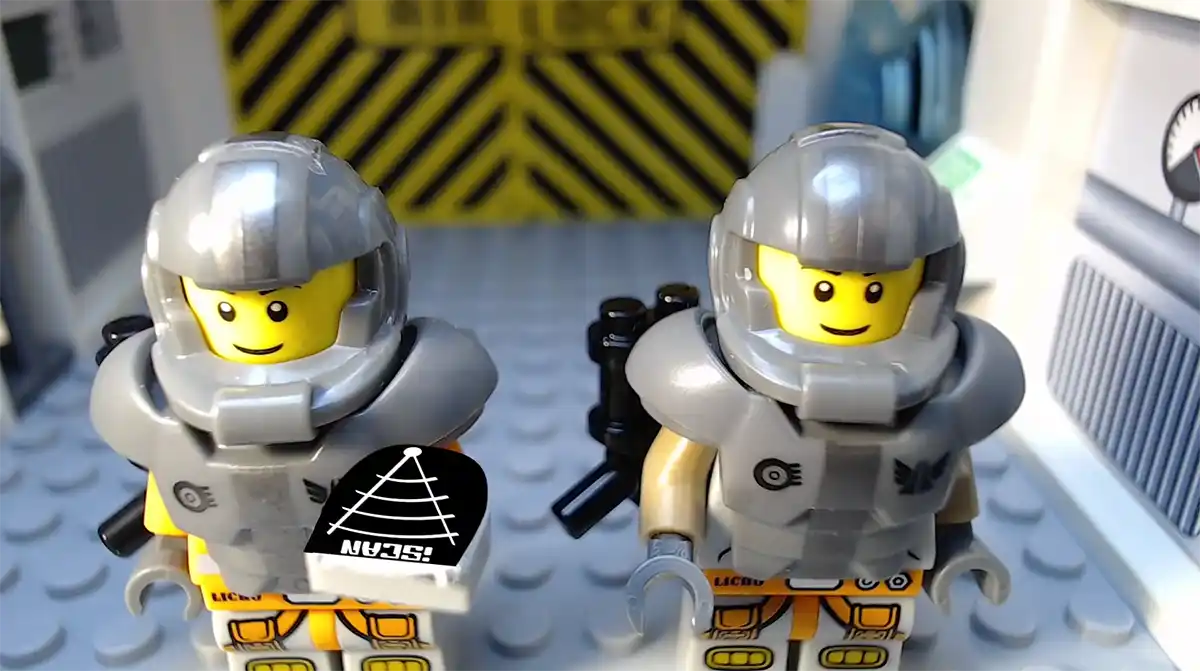
Great software! Stop Motion Animations are so much fun and my kids love it when we spend time together and create lego movies in their room.
@PeterPanda
13, June 2023
5/5
Sooooooooooooo amazing. iStopMotion makes such a great fun.
@animator243
22, April 2023
Breathe life into your toys with iStopMotion.
Empower your creativity and step into the world of animation with iStopMotion. Expertly designed for the aspiring animator in everyone. iStopMotion is a comprehensive animation software crafted to enable you to produce stunning stop-motion animations, engaging claymations, and dynamic cartoons on your Mac, iPad, or iPhone.
Specifically tailored to introduce and nurture creative skills in children, it’s the perfect platform to make computer animation both accessible and enjoyable.
For decades, iStopMotion has been a pioneer in introducing young minds to the world of animation, igniting a spark of imagination that lasts a lifetime.
Countless happy kids have embarked on their creative journeys, bringing their ideas to life and experiencing the joy of their very first animations using iStopMotion. With its intuitive interface, user-friendly features, and extensive educational resources, iStopMotion has become an invaluable tool for teachers worldwide.
Join the ranks of educators who have witnessed the transformative impact of iStopMotion in their classrooms, as students discover their artistic talents, develop storytelling skills, and collaborate on exciting animation projects. Embrace the rich history of happy kids who have animated their way to learning success with iStopMotion.
Licenses for Education
Thousands of educators from around the world work with iStopMotion™.
Schools can purchase licenses for more than one computer in your classroom conveniently through the Apple School Manager (school.apple.com).
The best software to help Kids to make stop motion animations.
For more than a century, stop motion animations have turned filmmakers’ fantasies into movies. Whether you are a serious creator of stop motion animations or you just want to spend some magical time with your children. Now, it’s time to tell your story, frame by frame with iStopMotion. Follow thousands of parents, kids, teachers, brickfilmers, professional film animators! Follow your interest in this fascinating movie making technique and try our iStopMotion™.
iStopMotion & iMovie
a Perfect Team
No need to hunt for talented actors, building a stage, or even writing a script. A bit of clay or a toy can be the star of your animated masterpiece. Create stop motions, claymotions and cartoon animations on your living room table.
Animations in iStopMotion
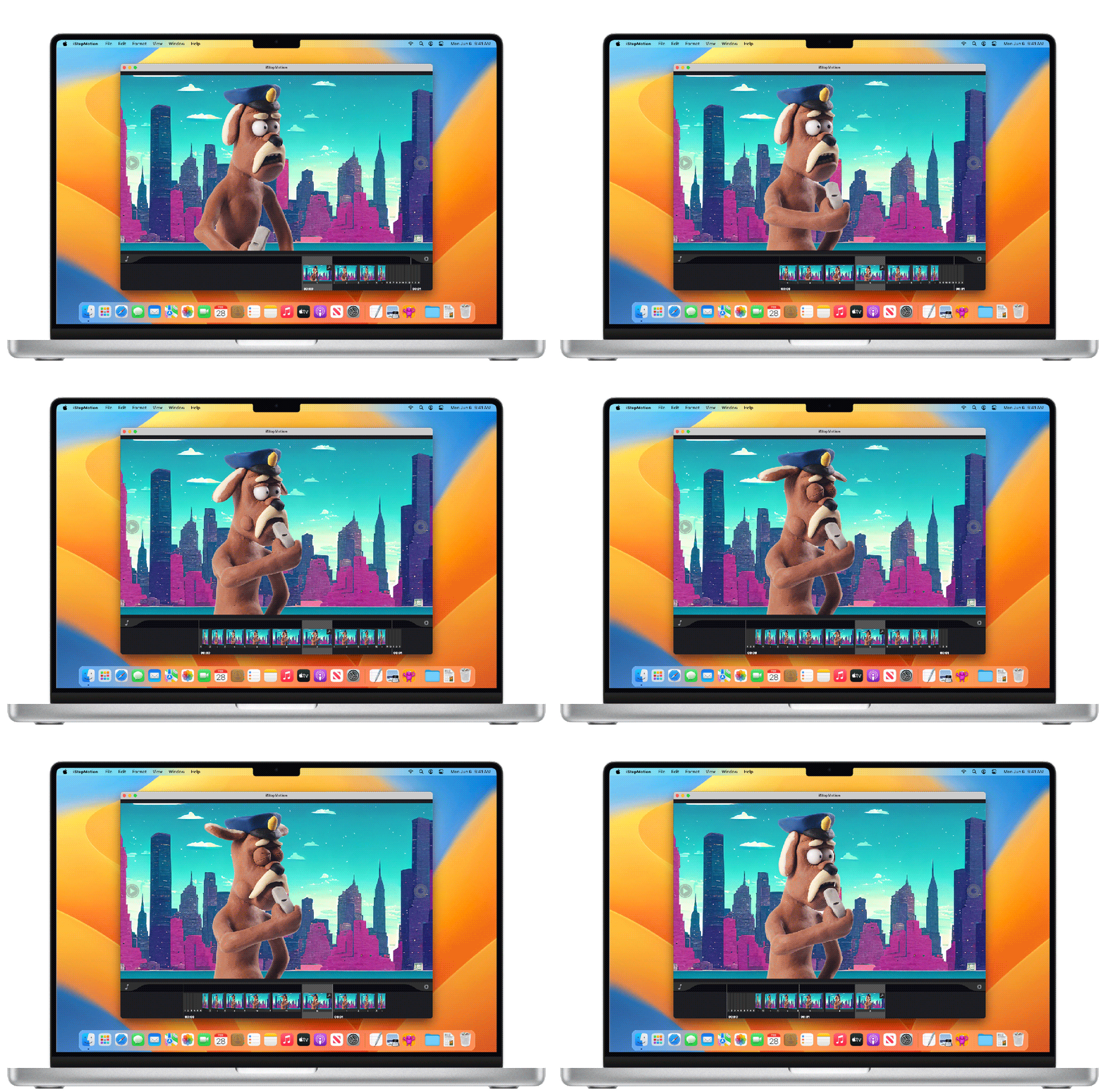
Show kids how to create Stop Motion Animations and you will see smiling faces. The iPad works as the many recorder, and controls the video time line. Navigation through the animation is easy by a stroke over the video timeline. Modulate the next step of the clay figure and take a shot. Step by step the animation is build. The onion layer feature makes it easier to continue this process through the entire project.
Post-Production in iMovie
iMovie® comes for free on every Mac® and iStopMotion and iMovie work hand in hand. Produce your Animation scenes in iStopMotion and combine and arrange to entire project in iMove. iMovie gives you great post-production features such as easy arrangement of clips, speed adjustments, colour grading and music while keeping it simple and easy to master. You can even add titles from various presets which gives the right polish to your stop motion animation movie.
Polish your Animations with iMovie
iMovie® is a complimentary software that comes pre-installed on every Mac®, and it seamlessly complements the functionality of iStopMotion. By leveraging the power of both applications, you can create stunning stop motion animations with ease. Begin by producing your animation scenes in iStopMotion, capturing the essence of each frame with precision. Then, effortlessly combine and arrange your scenes in iMovie to craft the entire project. With iMovie’s intuitive interface and robust post-production features, you can effortlessly arrange clips, adjust speeds, apply color grading, and enhance your animation with the perfect soundtrack. Additionally, iMovie offers a wide array of title presets, adding the ideal finishing touch to your stop motion animation movie. Together, iStopMotion and iMovie provide a powerful yet user-friendly workflow that elevates your creativity and transforms your vision into a captivating masterpiece.
Creating Animations
iStopMotion is made for creating animations. Export the sequences to iMovie or another video editing software to arrange, edit, add visual or sound effects.
iOS Camera App
Turn your iPhone or iPad into a versatile camera. iStopMotion Remote Camera is available for free in the AppStore. Transmit a live video feed via WiFi into iStopMotion for Mac.
Animated GIF
Up to 200 frames can now be exported into an animated GIF which can be easily shared on social media platforms.
Sharing
iStopMotion records and stores each frame individually for maximum quality and can export to any format supported by OS X, including Full HD and Apple ProRes.
Sound Waveform
Use a pre-recorded sound track and animate to it, for example to create a music video.
Best Stop Motion Software for Mac:
Boinx’s iStopMotion software is a very powerful and user-friendly app that is useful in producing time-lapse movies or stop motion animation on your iPhone, iPad or Mac.
Ready to Create? Download iStopMotion Now and
Begin Your Own Animation Journey
You have learned that iStopMotion is a playful animation software to create stop motion animations, claymations, or cartoons on Macs, iPads, and iPhones. Especially designed for kids to be creative with computers and help make their first playful steps into stop motion animations.